
The Frogwatch Dashboard now has a public API. This allows you to programmatically retrieve measurement data and process it in your own systems. In this article, we explain what the API is, who it's for, what you can do with it, and how to get started.
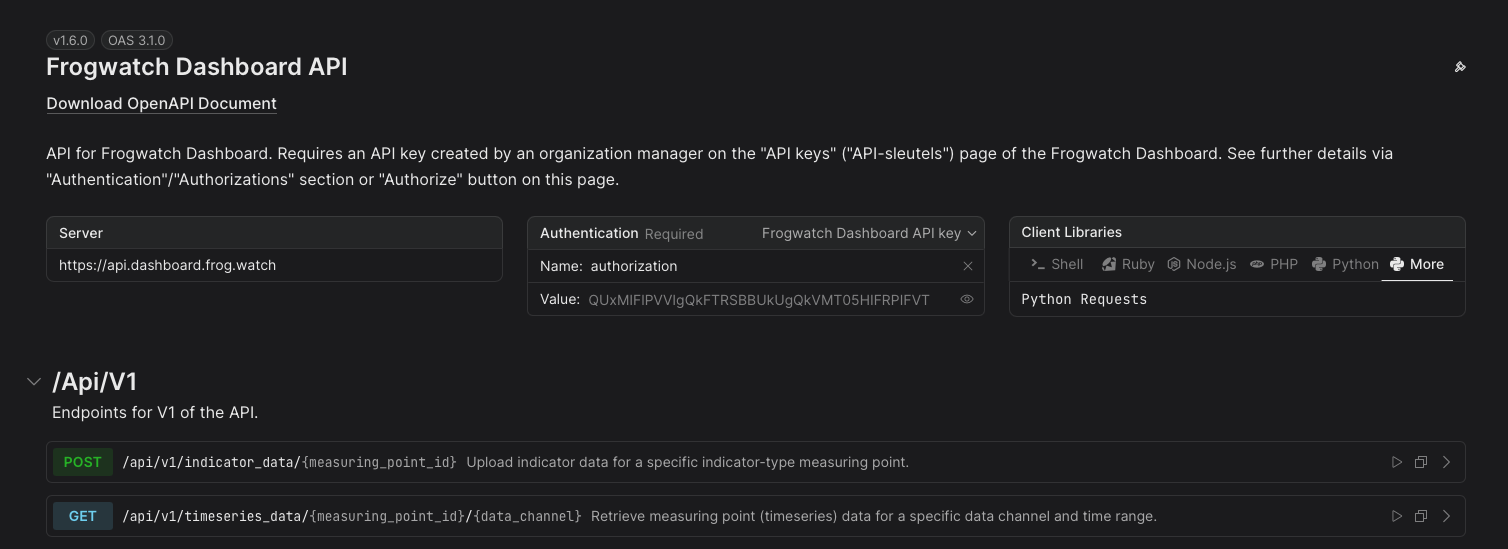
What is the Frogwatch Dashboard API?
The Frogwatch Dashboard API is a REST API that gives you direct access to measurement data stored in the Frogwatch Dashboard. The API offers two endpoints:
- Retrieve measurement data (GET) - Fetch timeseries data for a specific measuring point and data channel, such as vibration, displacement, tilt, or temperature.
- Upload indicator data (POST) - Upload indicator data to a measuring point of type 'indicator'.
The API is documented using the OpenAPI standard. Interactive documentation is available directly from the Dashboard, including example code in Python, Shell, Node.js, Ruby, and PHP.
Who is it for?
The API is intended for Frogwatch Dashboard users who want to integrate their measurement data into their own systems or workflows. For example:
- Engineering consultants who want to automatically incorporate vibration data into their own reporting systems or databases.
- Developers who want to build custom dashboards, analyses, or alerting based on Frogwatch data.
- Data analysts who want to periodically retrieve measurement data for further analysis in tools like Python, MATLAB, or Excel.
- Organizations that want to create API integrations between the Frogwatch Dashboard and other systems, such as their own monitoring platform or project management software.
Any user with an active Dashboard subscription can use the API.
What can you do with it?
With the GET endpoint, you can retrieve timeseries data per measuring point and data channel. Available data channels include:
- Vibration:
vibration.x,vibration.y,vibration.z - Velocity (SBR):
sbra_speed.x,sbra_speed.y,sbra_speed.z - Displacement:
displacement - Tilt:
tilt.x,tilt.y - Temperature:
temperature - Strain:
strain - And various other channels for acceleration, effective values, and traces
You specify a time period via the from and until parameters (in UTC). Optionally, you can enable or disable downsampling and set the sort order.
With the POST endpoint, you can upload your own indicator data to the Dashboard. This allows you to add external measurement values to a measuring point of type 'indicator', so you can view them alongside your Frogwatch data in the Dashboard.
Getting started
1. Create an API key
An organization manager can create an API key via the API keys page in the Dashboard. You use this key to authenticate your API requests.
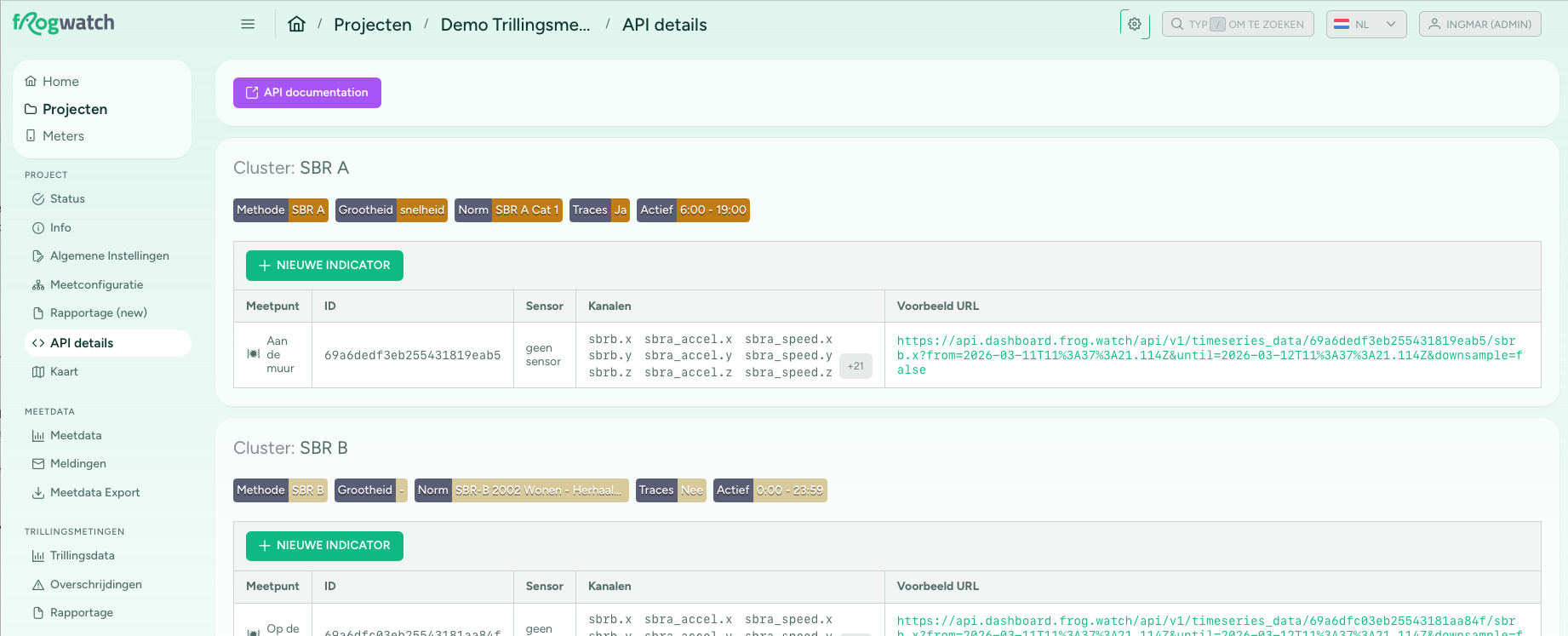
2. Look up measuring point IDs
In the Dashboard, you'll find an overview of all your measuring points under API details in the project menu. This page shows their IDs, available data channels, and example URLs, making it easy to quickly find the right parameters for your API calls.
3. Retrieve data
Here's an example in Python to retrieve vibration data:
import requests

response = requests.get(
    "https://api.dashboard.frog.watch/api/v1/timeseries_data/{measuring_point_id}/vibration.x",
    headers={
        "authorization": "YOUR_API_KEY"
    },
    params={
        "from": "2026-03-01T00:00:00.000Z",
        "until": "2026-03-02T00:00:00.000Z"
    }
)

data = response.json()

# data["data"] contains a list of [timestamp, value] pairs
# data["metadata"] contains information about the measuring point and unit
for timestamp, value in data["data"]:
    print(f"{timestamp}: {value}")
Replace {measuring_point_id} with your measuring point's ID and YOUR_API_KEY with your API key. Both can be found in the Dashboard.
4. Interactive documentation
Click the API documentation button on the API details page to open the full, interactive API documentation. Here you can test API requests directly and view example code in the programming language of your choice.
Available for all Dashboard users
The API is available to all users with an active Frogwatch Dashboard subscription. If you have questions about the API or need help with integration, please contact us.